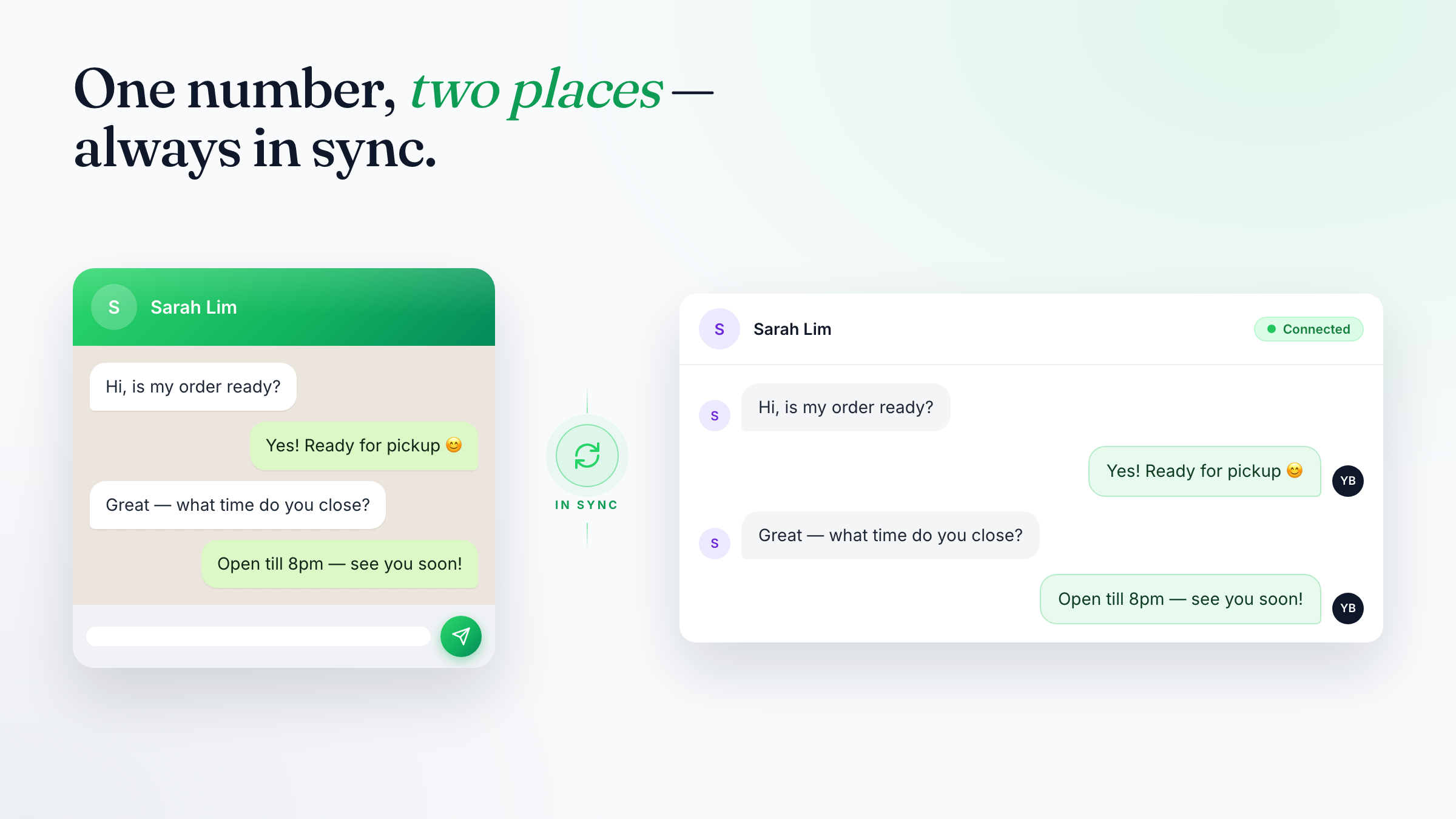
If you run your business on the WhatsApp Business App, Coexistence lets you connect that same number to Exabloom without giving up your phone, your number, or your chat history. This plain-language guide walks business owners and their teams through exactly what changes once Coexistence is switched on — what stays free, what gets billed, which features turn off, and how to stay connected.
1. What is WhatsApp Coexistence?
Coexistence is a special mode that lets your WhatsApp Business App phone number stay active on your phone and connect to Exabloom at the same time. You don't need to give up your phone number or lose your chat history to get started.
Think of it like adding a second screen to your kitchen — your chef (Exabloom) can now see every order coming in and send replies, but the original kitchen phone is still there and still works.
The key promise: You keep your existing WhatsApp number, your chat history (up to 6 months), and you can still send messages directly from the WhatsApp Business App on your phone whenever you want.
How it compares to a full migration
In a full Cloud API migration, your number moves entirely to the platform and your WhatsApp Business App stops working. In Coexistence, both sides stay active. The trade-off is that Coexistence has some restrictions (explained in this guide) that a full migration does not.
2. What Changes on Your WhatsApp Business App
When Coexistence is enabled, a few WhatsApp Business App features are automatically turned off. This is enforced by WhatsApp (Meta), not Exabloom. You will notice these changes immediately after connecting.
| Feature | WhatsApp Business App | Exabloom |
|---|---|---|
| 1-to-1 chat messages | ✅ Works normally | ✅ Fully supported |
| Contacts sync | ✅ No change | ✅ Synced automatically |
| Group chats | ✅ Still in the app | ❌ Not available on platform |
| Disappearing messages | ❌ Turned OFF | ❌ Not supported |
| View-once messages | ❌ Turned OFF | ❌ Not supported |
| Live location sharing | ❌ Turned OFF | ❌ Not supported |
| Broadcast lists | ❌ Disabled (read-only) | ❌ Not supported |
| Voice & video calls | ✅ Still in the app | ❌ Not via Exabloom |
| Catalog & Orders | ✅ Still in the app | ❌ Not via Exabloom |
| Status updates | ✅ Still in the app | ❌ Not via Exabloom |
| Business profile editing | ✅ Managed in app only | ❌ Cannot edit via Exabloom |
| Quick replies & Labels | ✅ Still in the app | ❌ Not via Exabloom |
| Away / Greeting messages | ✅ Still in the app | ❌ Managed by Exabloom instead |
⚠️ Companion devices (linked devices)
When Coexistence is activated, all previously linked devices (like WhatsApp Web on your laptop) will be automatically unlinked. You will need to re-scan the QR code to reconnect them. Additionally, WhatsApp for Windows is not supported — messages sent from the Windows app will not be visible to Exabloom. Use WhatsApp Web in a browser instead.
3. Your Chat History: What Gets Synced
When you first connect, Exabloom will sync your past conversations. Here is exactly what gets transferred and what does not.
What is synced
- 1-to-1 chats from the last 6 months
- Contact names and details
- Media files (photos, documents, voice notes) from the last 14 days only
What is NOT synced
- Group chat messages (group chats are excluded entirely)
- Media older than 14 days (messages appear but without the attachment)
- Messages older than 6 months
One-time sync — act promptly
The history sync happens once and only once at the time of onboarding, and Exabloom has 24 hours to complete it. If the sync window is missed, you would need to go through the setup process again. Make sure your phone is on and connected during the initial setup.
4. Sending Messages: What Costs What
Coexistence creates a clear split between free messages (sent from your phone) and platform messages (sent by Exabloom on your behalf). Understanding this prevents billing surprises.
| Sent from | Cost | Notes |
|---|---|---|
| WhatsApp Business App (your phone) | Free | Always free — no platform billing applies |
| Exabloom (automation or your team via CRM) | Billed | Subject to Meta conversation pricing |
The 24-hour service window
When a customer sends your business a message, a 24-hour free-reply window opens on the Exabloom side. During that window your team can reply freely. Once it closes, Exabloom can only re-engage the customer by sending a pre-approved template message.
Note on older conversations
If a customer messaged you before you set up Coexistence, no service window exists for that conversation on the Exabloom side yet. Your team will need to send a template message to re-open the conversation through Exabloom. Replying from your phone directly is always fine and free.
5. Keeping Your Connection Active
Coexistence relies on your WhatsApp Business App phone staying active. WhatsApp will automatically disconnect the Exabloom integration if either of these inactivity thresholds is hit.
| Trigger | Threshold | What to do |
|---|---|---|
| Primary phone not opened | ~14 days | Open WhatsApp Business App at least once every two weeks |
| Linked devices not used | ~30 days | Use WhatsApp Web or a linked device occasionally |
⚠️ If you get disconnected
If the integration disconnects, Exabloom stops receiving your messages and automated replies stop working. You can reconnect yourself by following the steps below — no need to contact anyone.
How to reconnect after a disconnection
Follow the same steps you used when first connecting. Here's a summary:
- On your computer, go to app.exabloom.com and log in
- Go to Settings → Social Channel
- Find WhatsApp Business (Coexistence) and click Connect
- In the popup, click "Connect with Facebook" and log in with your Facebook account
- Click "Get Started", select your verified business portfolio, then click Next
- Select "Connect your existing WhatsApp Business App" → Next
- Enter your WhatsApp Business phone number (with country code) → Next
- On your phone: open WhatsApp Business → look for a message from "Facebook Business" in your chats → tap Connect → tap "Connect to the Business Platform" → select "Share all chats" → Confirm
- Point your phone camera at the QR code on your computer screen and wait up to 45 seconds
- Set your timezone when prompted → Next → Confirm access → wait for the final connection to complete
- You should see "You're connected to Exabloom" on your phone and "Your account is connected with Exabloom" on your computer
- Click Finish
For the full step-by-step guide with screenshots, visit the Connecting WhatsApp Business to Exabloom help article.
How to disconnect intentionally
If you ever need to disconnect your number from Exabloom, the correct way is inside your WhatsApp Business App:
Settings → Account → Business Platform → Disconnect Account
This is the only supported method. Do not attempt to disconnect through any other setting.
6. What Exabloom Can (and Cannot) Do
Exabloom can see and interact with your conversations, but it works within the boundaries WhatsApp sets. Here is a practical summary.
Exabloom CAN
- See all incoming messages from your customers in real time
- Mirror messages you send from your phone into Exabloom's inbox
- Send replies on your behalf — automated or by your team
- Send template messages to customers outside the 24-hour window
- Organise conversations, assign them to team members, and add notes
- Trigger automations based on keywords or customer replies
Exabloom CANNOT
- Access or mirror group chats — these stay on your phone only
- Make or receive voice or video calls — use your phone for those
- Edit your business profile, catalog, or status — manage those in the app
- Send messages from the Windows WhatsApp desktop app — those won't appear in Exabloom
- Override the 24-hour service window rule — templates are required after it expires
7. Frequently Asked Questions
Will my customers notice any difference?
No. From your customer's side, they are still messaging the same number. The experience is identical.
Can I still reply from my phone?
Yes, always. Replies from your phone are free and will appear in Exabloom so your team can see the full conversation thread.
What happens to my old chats?
Up to 6 months of 1-to-1 chat history is synced to Exabloom at setup. Chats older than 6 months and all group chats remain on your phone only.
Why did my disappearing messages and broadcast lists stop working?
WhatsApp automatically disables these features for all numbers running in Coexistence mode. This is a WhatsApp policy, not an Exabloom decision.
Do I need to keep my phone on?
You need to open the WhatsApp Business App at least once every 14 days to keep the connection alive. Leaving it completely idle for longer will disconnect the integration.
What do I do if the integration disconnects?
You can reconnect yourself. Go to Settings → Social Channel in Exabloom, click Connect next to WhatsApp Business (Coexistence), and follow the reconnection steps above, or visit the full guide with screenshots.
My team uses WhatsApp Web — will that still work?
Yes, WhatsApp Web (in a browser) is supported. However, the WhatsApp for Windows desktop app is not — messages sent from it will not be visible to Exabloom. Switch to WhatsApp Web in a browser if your team was using the Windows app.
Can I upgrade to full Cloud API later?
Yes. If you outgrow Coexistence and need higher throughput or more features, contact Exabloom to discuss the migration process and what changes.
8. Quick Reference Cheat Sheet
| What to remember | The rule |
|---|---|
| Keep your phone active | Open WhatsApp Business App at least once every 14 days |
| Sending from your phone | Always free — no Exabloom billing applies |
| Sending via Exabloom | Subject to Meta conversation pricing |
| Group chats | Stay on your phone only — not synced to Exabloom |
| Broadcast lists | Disabled once Coexistence is active |
| Disappearing & view-once messages | Disabled once Coexistence is active |
| Linked devices | All unlinked at setup — re-scan QR to reconnect |
| WhatsApp for Windows | Not supported — use WhatsApp Web in a browser |
| Disconnecting intentionally | Settings → Account → Business Platform → Disconnect Account |
| If disconnected | Reconnect yourself at Settings → Social Channel → Connect |
| Reconnection guide | docs.exabloom.com |